
You already know how this story ends.
You download a vocabulary app. You're excited for 3 days. Then one morning you're rushing to a meeting and you skip it. Then you skip again. Then the streak breaks, the guilt kicks in, and the app quietly moves to your last page of apps — then gets deleted.
You didn't fail because you're lazy.
You failed because the model was broken from the start.
Every vocabulary app assumes you have a spare 15 minutes per day to sit down and study. But if you're a developer, a PM, a designer — you don't have 15 minutes. You have 400 tiny gaps of 10–30 seconds scattered throughout your day, and every one of them is completely wasted.
Wordrop fixes the model, not the person.
It runs silently in the background. When your keyboard goes idle, a quiz card floats over your screen. You answer. It disappears. You keep working.
No app to open. No session to schedule. No streak to maintain.
This guide shows you exactly how to set it up — from first launch to the settings most users miss.
What happens in a real workday with Wordrop
Before the setup — here's what you're actually building toward:
8:00am — You open your laptop. Wordrop starts silently in the background. You don't notice.
8:23am — Reading a PR. You pause to think. 12 seconds pass.
A card floats up: "mối liên hệ" — a context image, the pronunciation //tæz//, an input box.
You type "ties". Hit submit. ✓ The card vanishes. You keep reading.
9:45am — Waiting for a build. Another card. "adolescence." You click Hard. Wordrop notes it, schedules a shorter review interval.
12:30pm — Calendar shows a team sync. Wordrop detects it and pauses automatically.
3:10pm — Stuck reading docs. Three cards appear in a row over your browser. You rate two Good, one Again.
5:30pm — End of day. Stats tab shows 80% accuracy, 99 total reviews, 6 badges. Streak: 1 day climbing.
You didn't open a study app once.
Step 1: First launch — Choose how to add words
Open Wordrop. The onboarding is 4 steps. This is Step 1 of 4.
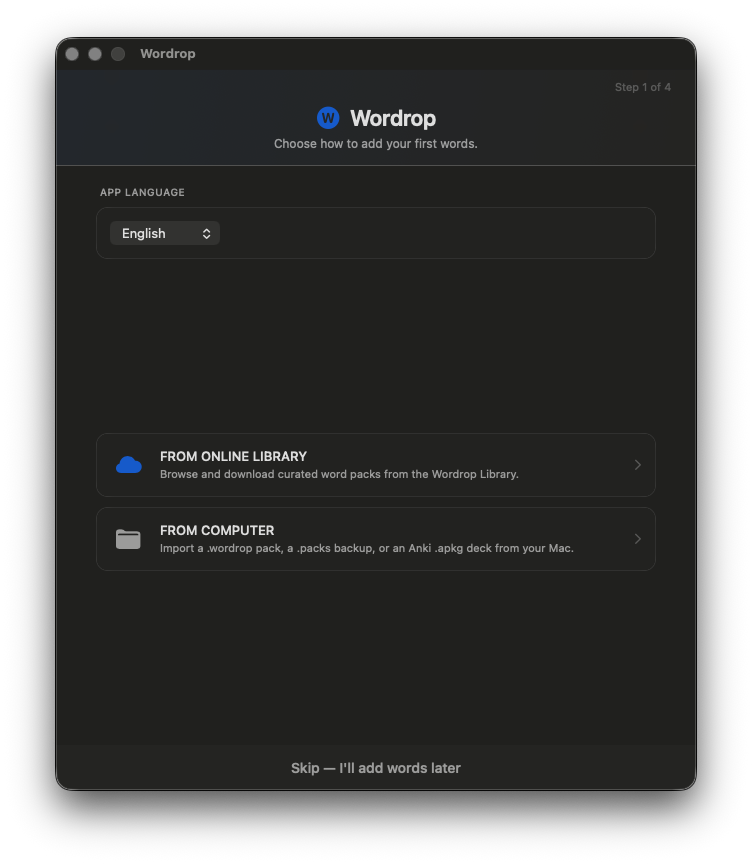
First, set your App Language — what language the Wordrop interface uses.
Then choose how to get your first words:
FROM ONLINE LIBRARY (recommended for most people)
Browse and download curated word packs from the Wordrop Library. Hundreds of words organized by language pair, level, and domain.
FROM COMPUTER
Import a .wordrop pack, a .packs backup, or an Anki .apkg deck from your Mac.
> Switching from Anki? Choose "From Computer" and drag your exported .apkg file in. Wordrop reads it directly — no conversion needed. Your existing cards become Wordrop cards.
You can also hit Skip — I'll add words later if you just want to explore the app first.
Step 2: Set your language direction
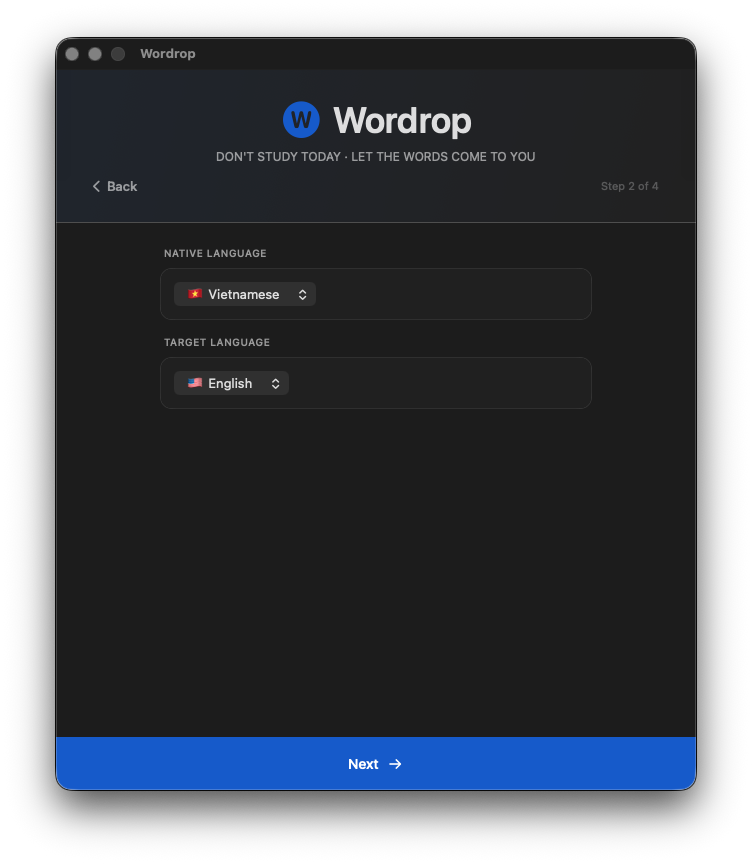
Two dropdowns. Simple.
- Native Language — the language you think in (e.g. Vietnamese, Japanese, Chinese)
- Target Language — the language you're learning (e.g. English)
This tells Wordrop which direction to quiz you: native → target on quiz cards.
Hit Next →.
Step 3: Pick your word pack
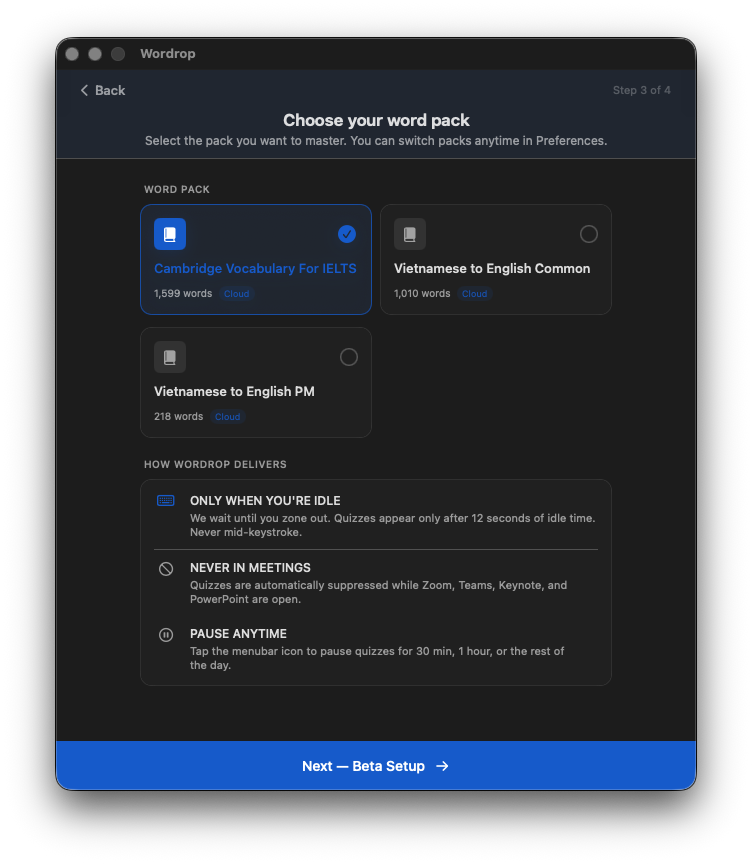
This is where you choose the pack you'll start mastering.
For Vietnamese → English learners:
| Pack | Words | Best for |
|---|---|---|
| Cambridge Vocabulary For IELTS | 1,599 | Academic writing, exams |
| Vietnamese to English Common | 1,010 | General everyday fluency |
| Vietnamese to English PM | 218 | Project management, workplace English |
Chinese and Japanese speakers have equivalent options in the library.
Which one to pick? Start with Common if you want broad fluency. Add PM if you communicate in English at work. Add IELTS if you're preparing for an exam. You can stack multiple packs later.
Before you move on, this screen also shows you the three rules Wordrop lives by:
- ONLY WHEN YOU'RE IDLE — quizzes appear only after 12 seconds of keyboard inactivity. Never mid-keystroke.
- NEVER IN MEETINGS — automatically suppressed when Zoom, Teams, Keynote, or PowerPoint are open.
- PAUSE ANYTIME — tap the menu bar icon to pause for 30 min, 1 hour, or the rest of the day.
Hit Next — Beta Setup →.
Step 4: Beta Registration
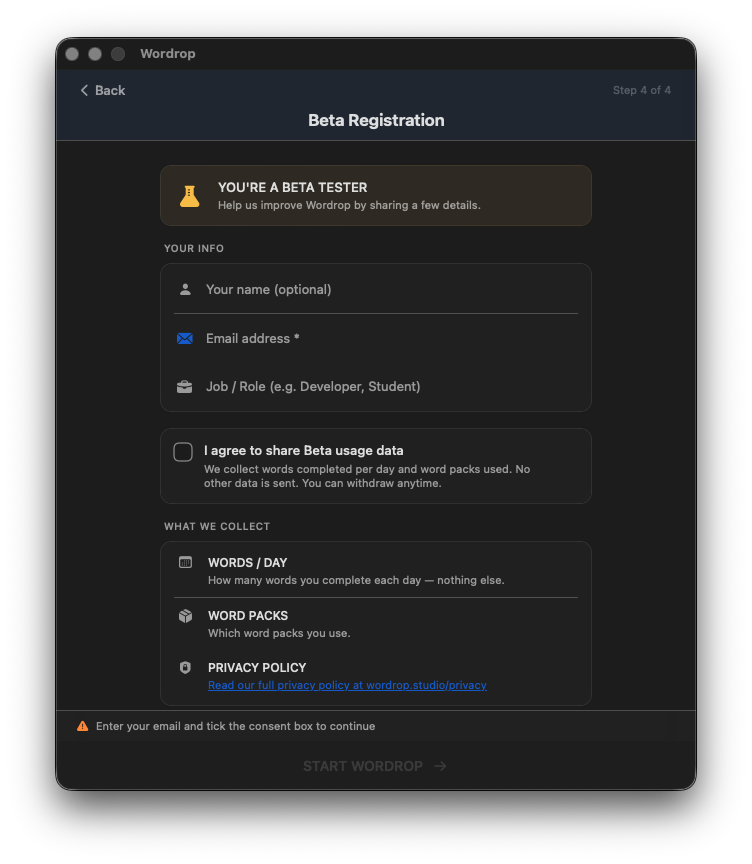
Wordrop is currently in beta. Fill in your details to register:
- Your name (optional)
- Email address (required)
- Job / Role (e.g. Developer, Student, Product Manager)
Check the consent box to share usage data. What Wordrop collects: words completed per day and which word packs you use. Nothing else. You can withdraw consent anytime.
Hit START WORDROP → and you're in.
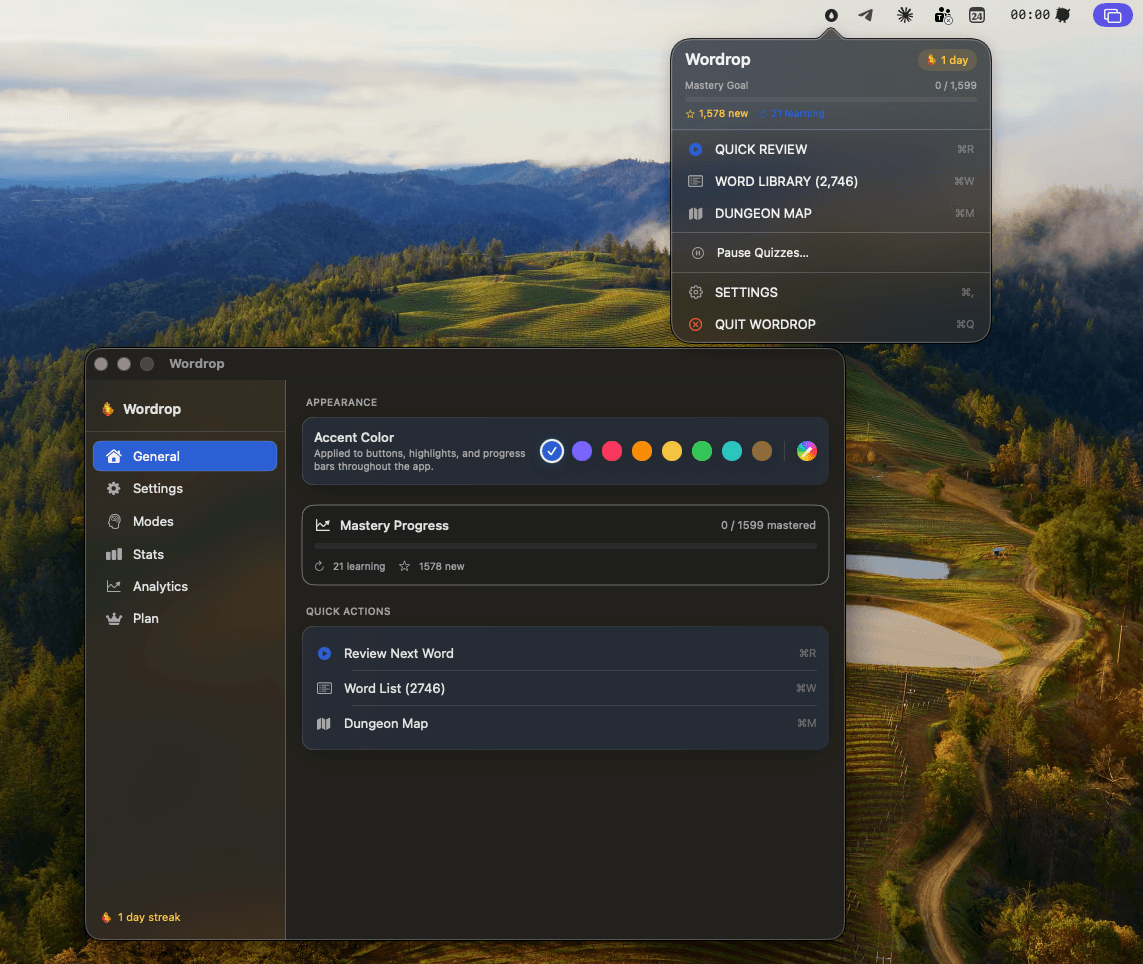
Your home base: The 6-tab sidebar
Once onboarding is complete, the main Wordrop window opens.
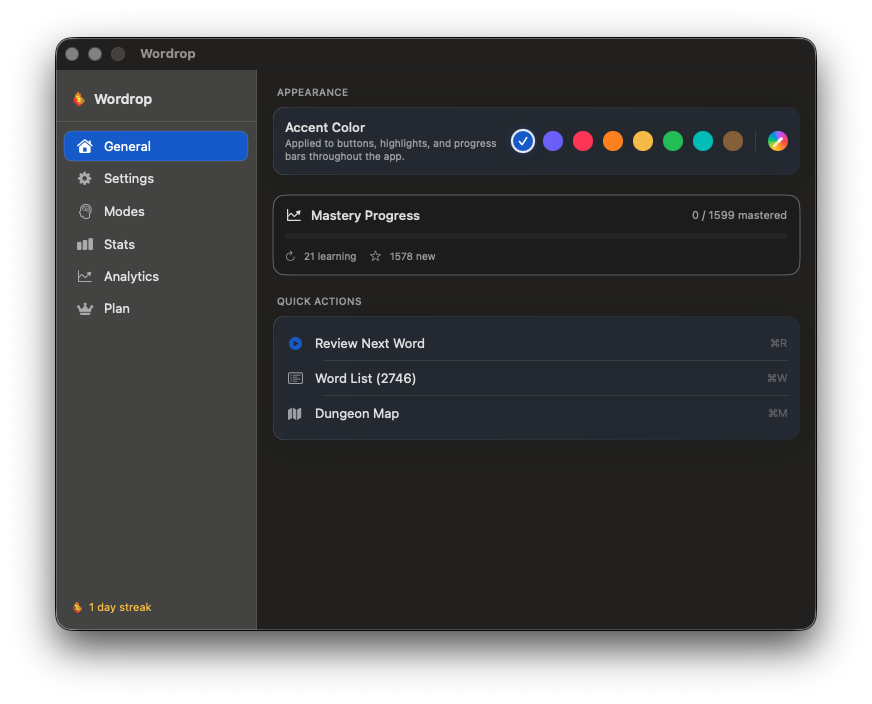
Six tabs. Each one does one job:
| Tab | What it does |
|---|---|
| General | Dashboard: accent color, mastery progress, quick actions |
| Settings | Language pair, quiz delivery, idle & blocked apps |
| Modes | Quiz types, session length, Elder Word Whispers |
| Stats | Progress stats, activity map, achievement badges |
| Analytics | Rating health over time, your hardest words |
| Plan | Beta tester status, trial info, export & feedback |
The flame icon + streak counter at the bottom left tracks your consecutive learning days.
General tab: The dashboard
Accent Color — pick your UI color. Applied to buttons, highlights, and progress bars throughout the app.
Mastery Progress — at a glance: how many words you've mastered vs. total. Example: 0 / 1599 mastered · 21 learning · 1578 new.
Quick Actions — three keyboard shortcuts:
⌘R — trigger a quiz manually right now⌘W — open your full word library⌘M — open the gamified word-pack progress viewSettings tab: Tell Wordrop when and what to teach you
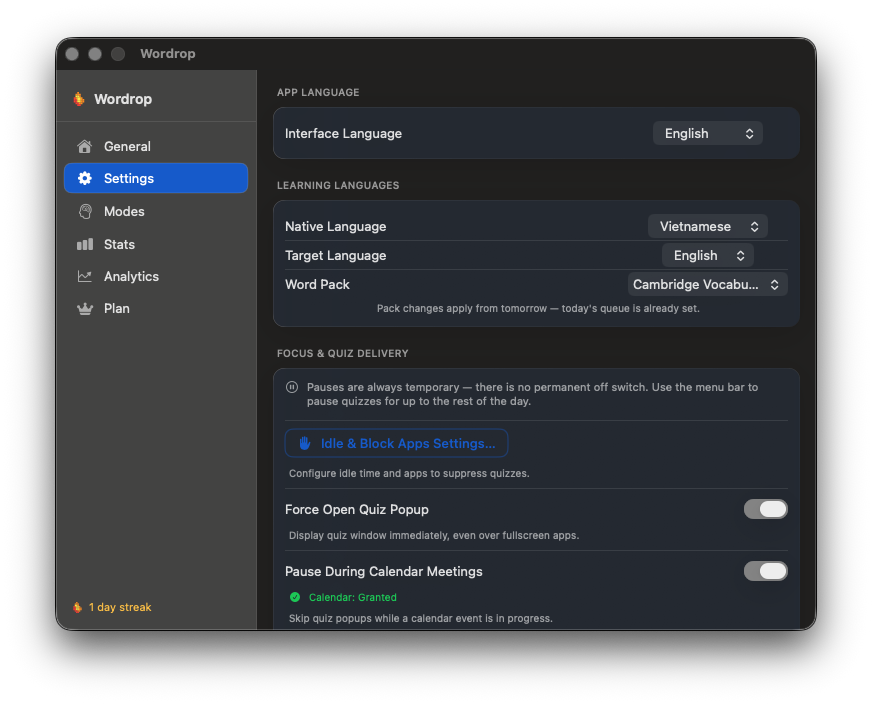
App Language
Language of the Wordrop interface itself. Independent from your learning languages.Learning Languages
> Pack changes apply from tomorrow — today's review queue is already set.
Focus & Quiz Delivery
The most important button on this screen: Idle & Block Apps Settings...
This is the one setting most new users skip. Don't skip it.
Everything else here:
The critical configuration: Idle & Block Apps
Click Idle & Block Apps Settings... from the Settings tab.
This is where you configure the two things that determine how well Wordrop fits into your day.
Idle Threshold
How many seconds of keyboard inactivity before Wordrop triggers a quiz.Default: 12 seconds.
For most developers and knowledge workers, 10–15 seconds is the sweet spot — long enough to ignore normal typing pauses, short enough to catch the real gaps between tasks.
If you feel quizzes are appearing too often: increase the threshold.
If you feel you're not seeing any quizzes: decrease it.
Blocked Apps
Apps where Wordrop will never show a quiz, regardless of idle time.Defaults already include Keynote, PowerPoint, Zoom, Teams, and Webex.
Add anything else where quizzes would be genuinely disruptive.
> Pro tip: Don't over-block. Every blocked app is a lost learning moment. Start with just your video call apps and add others only if necessary.
Modes tab: Configure the quiz experience
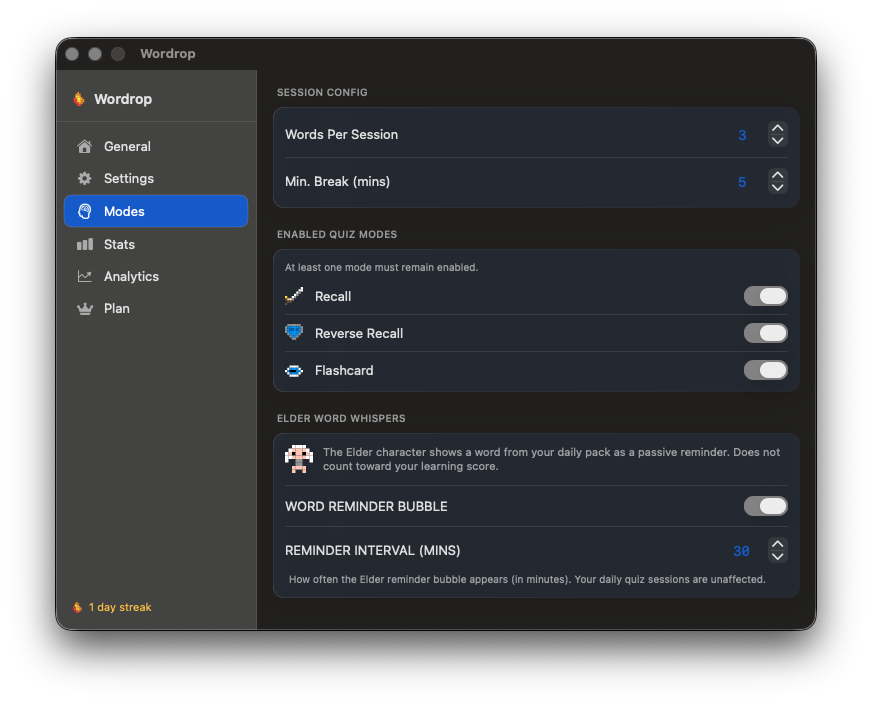
Session Config
Words Per Session — how many words appear in each quiz burst.
Default: 3. Lower = less disruptive. Higher = faster vocabulary growth.
Min. Break (mins) — minimum time between quiz sessions.
Default: 5 minutes. Prevents Wordrop from becoming a distraction.
Quiz Modes
Toggle which types of quizzes can appear. At least one must stay enabled.
Recall — You see the native word (e.g. mối liên hệ), you type the English equivalent. Hardest mode. Most effective for long-term retention.
Reverse Recall — You see the English word, you type the native translation.
Flashcard — The answer is shown to you. You rate your confidence with Again / Hard / Good / Easy. No typing required. Good for high-volume review.
Elder Word Whispers
A passive reminder feature. The Elder character occasionally shows a word from your daily pack as a gentle visual — no action needed, doesn't count toward your learning score.
- WORD REMINDER BUBBLE — toggle the Elder feature on/off
- REMINDER INTERVAL (MINS) — how often the bubble appears (default: 30 minutes)
How the quiz actually works
Get back to your work. Wordrop runs in the background.
After 12 seconds of idle time, a quiz card floats over your screen:
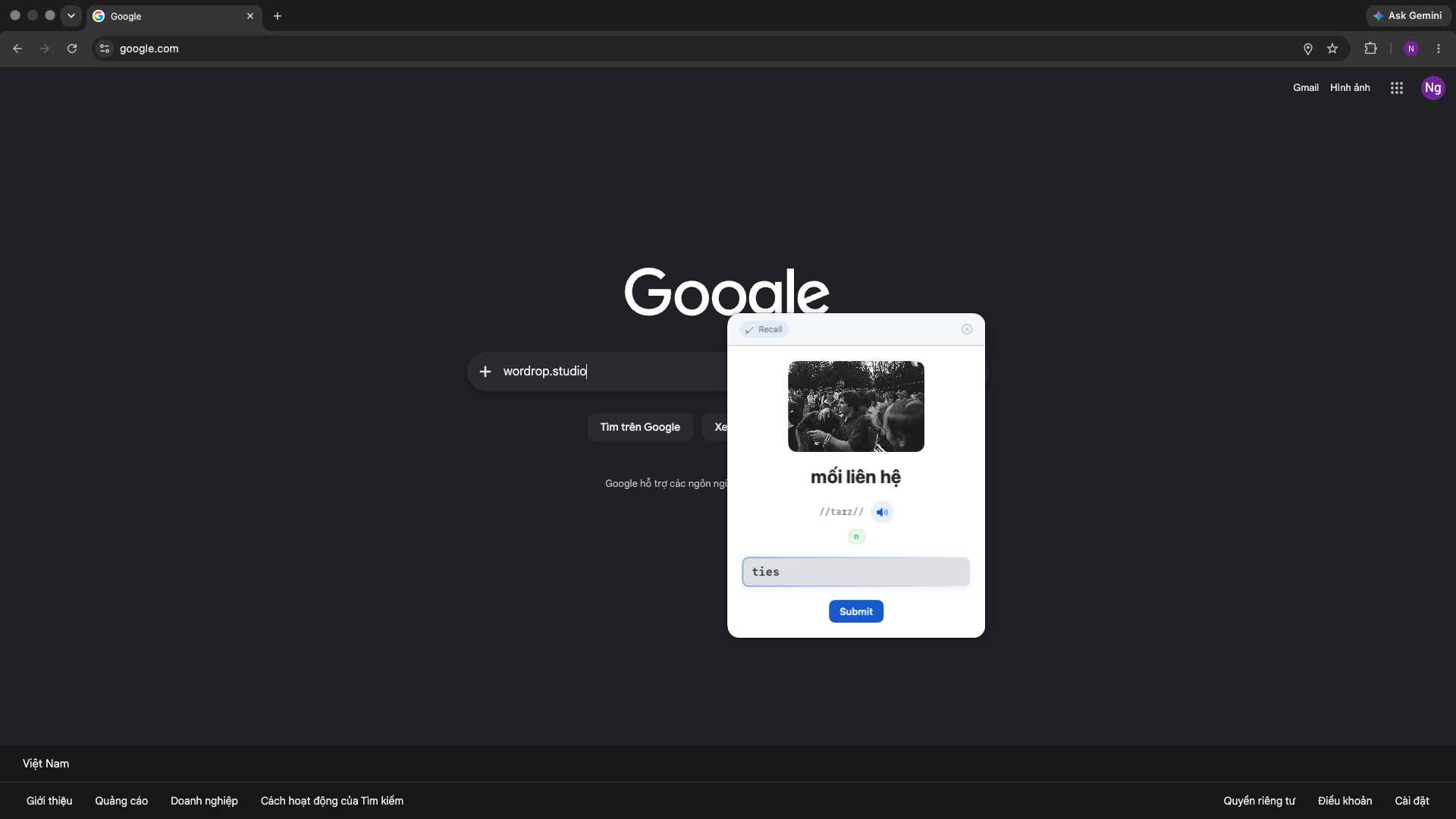
What you see on the card:
The card floats above everything — your IDE, your browser, your Figma file. It does not steal keyboard focus. If you're mid-keystroke when it appears, it will wait.
Answer it in 5 seconds or close it with [ × ]. Either way, you're back in flow.
Rate your memory
After submitting, the card reveals the correct answer and asks: "How did it feel?"
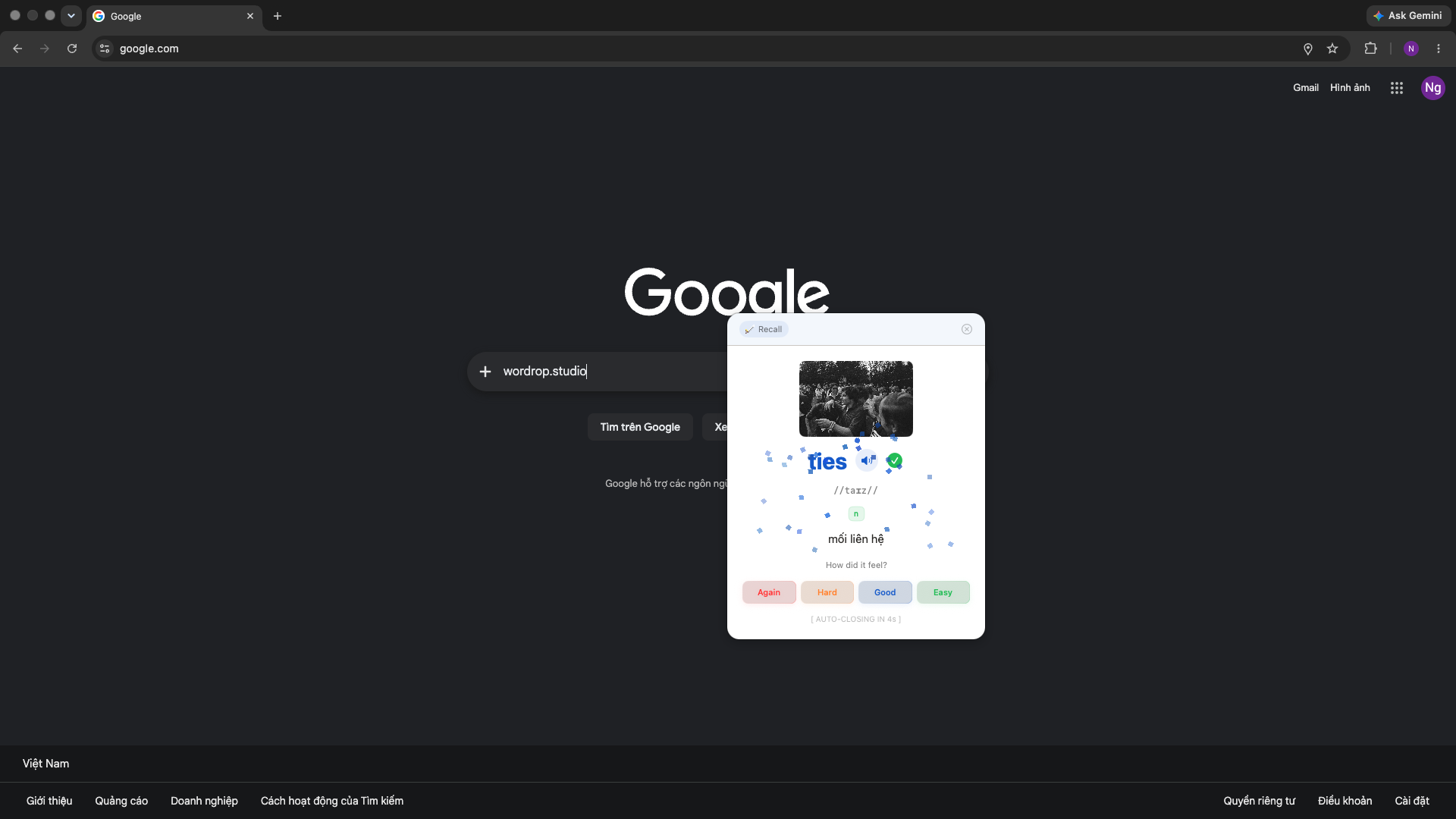
Four buttons. Be honest — it matters:
| Button | What it means | Next review |
|---|---|---|
| Again | I didn't know it | Very soon |
| Hard | I got it but struggled | Short interval |
| Good | Remembered with normal effort | Standard interval |
| Easy | Knew it instantly | Long interval |
This is the SM-2 spaced repetition algorithm — the same one Anki runs on. Your honest rating schedules the next time this word appears. The more accurately you rate, the more efficiently Wordrop allocates its review time.
The card auto-closes in a few seconds. You return to exactly where you were.
The menu bar: Control Wordrop without opening the app
Click the Wordrop icon in your macOS menu bar:
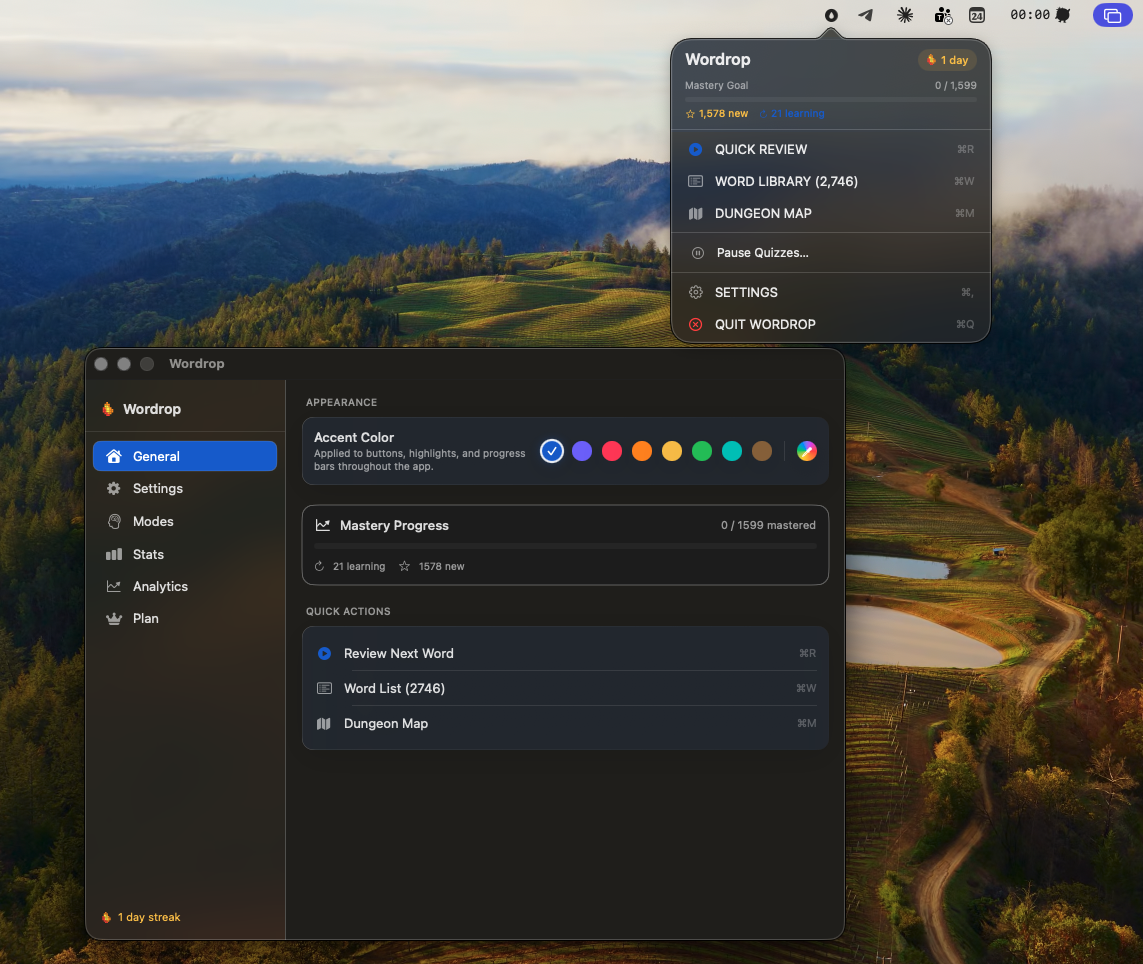
What you see:
What you can do from here:
⌘R — trigger a quiz session manually⌘W — open the word list⌘M — open the gamified progress map⌘, — open the full settings window⌘QStats tab: Watch the numbers move
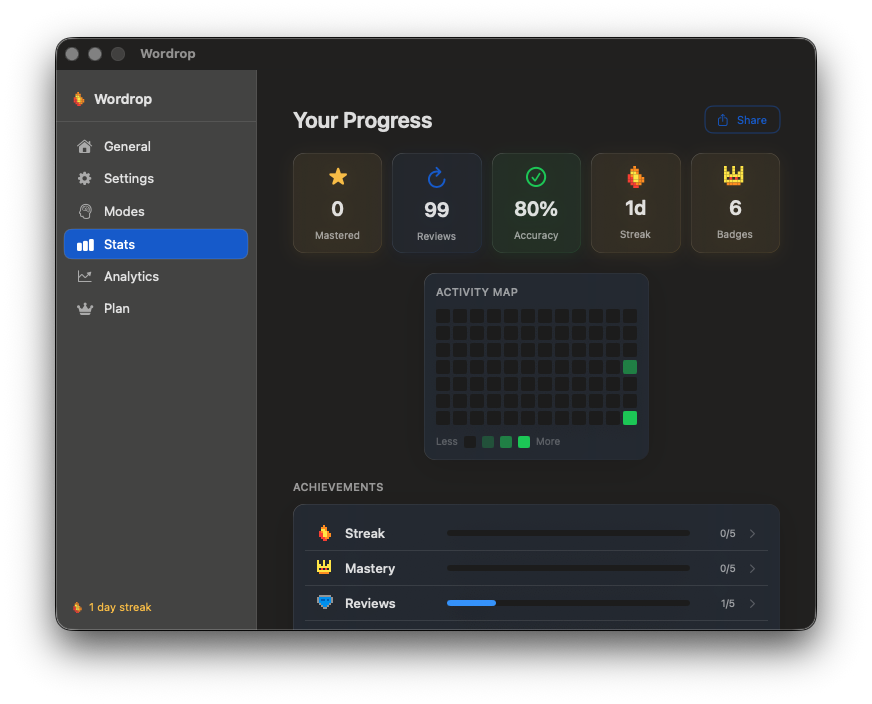
Five metrics at the top:
| Metric | What it means | |
|---|---|---|
| ⭐ | Mastered | Words reviewed enough that Wordrop shows them less |
| 🔄 | Reviews | Total review sessions completed |
| ✅ | Accuracy | Average correct response rate |
| 🔥 | Streak | Consecutive days with at least one quiz |
| 👑 | Badges | Unlocked achievements |
Below that: an Activity Map — a GitHub-style heatmap of your learning history. Darker = more words reviewed that day.
Then: Achievements — Streak, Mastery, and Reviews, each with 5 tiers to unlock.
The most interesting moment is 3–4 weeks in, when you notice the Mastered counter has quietly climbed from 0 to 60. No dramatic study sessions. Just background accumulation.
Analytics tab: Find the words that are fighting back
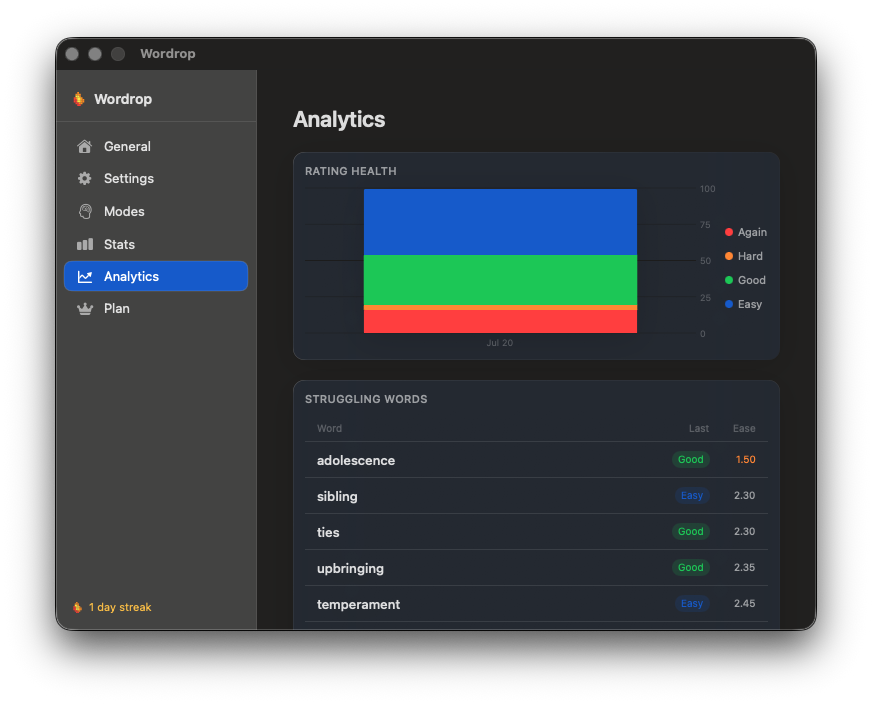
Rating Health
A stacked bar chart showing how you've rated your answers over time:
A healthy chart is mostly blue and green. A lot of red means you're absorbing too many new words before the older ones have solidified — consider slowing your daily new word count.
Struggling Words
A ranked list of your hardest words — the ones with the lowest ease factor scores. This list shows your last rating and current ease score for each.
Use this view when you want to deliberately focus on your weakest spots. Or just watch the ease numbers climb as Wordrop keeps drilling them.
Plan tab: Beta tester tools
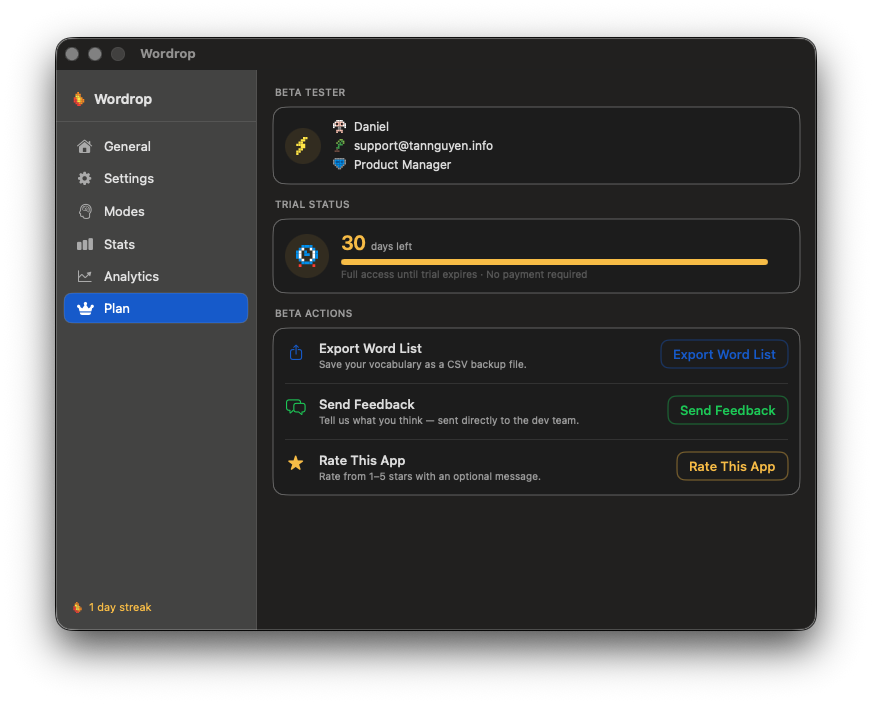
Beta Tester — your registered name, email, and role from onboarding.
Trial Status — remaining trial days and a progress bar. Full access until the trial expires. No payment required during beta.
Beta Actions:
Word Library: See every word across all your packs
Open the Word Library with ⌘W from anywhere.
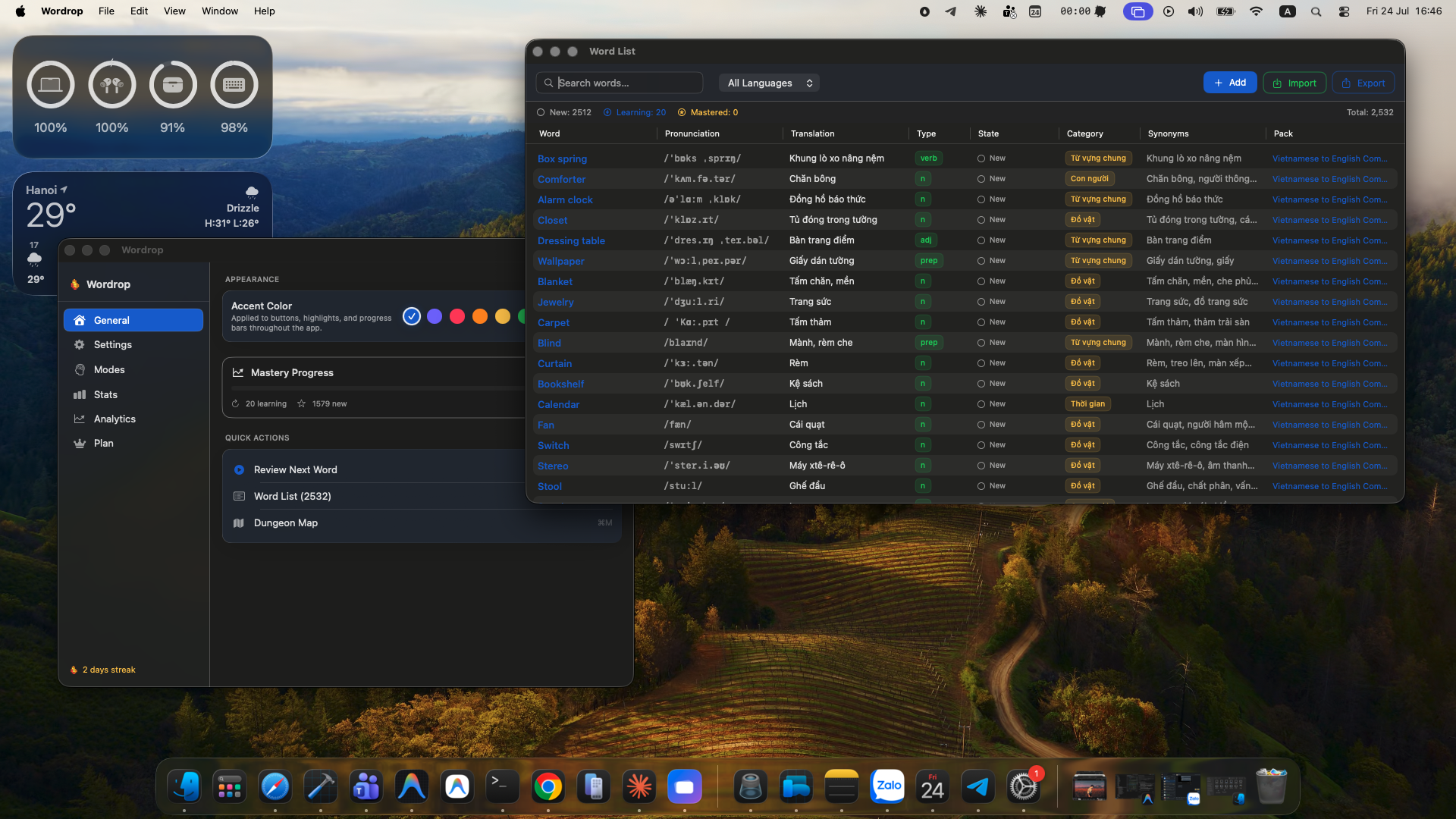
Every word across all your active packs, in one table:
| Column | What it shows |
|---|---|
| Word | The English word |
| Pronunciation | IPA phonetic transcription |
| Translation | Native language meaning |
| Type | Noun, verb, adj, prep… |
| State | New / Learning / Mastered |
| Category | Topic tag (e.g. Đồ vật, Thời gian) |
| Synonyms | Related words in your native language |
| Pack | Source word pack |
Search, filter by language, or click + Add to add individual words manually.
Adding more packs
Click Import at any time to add more:
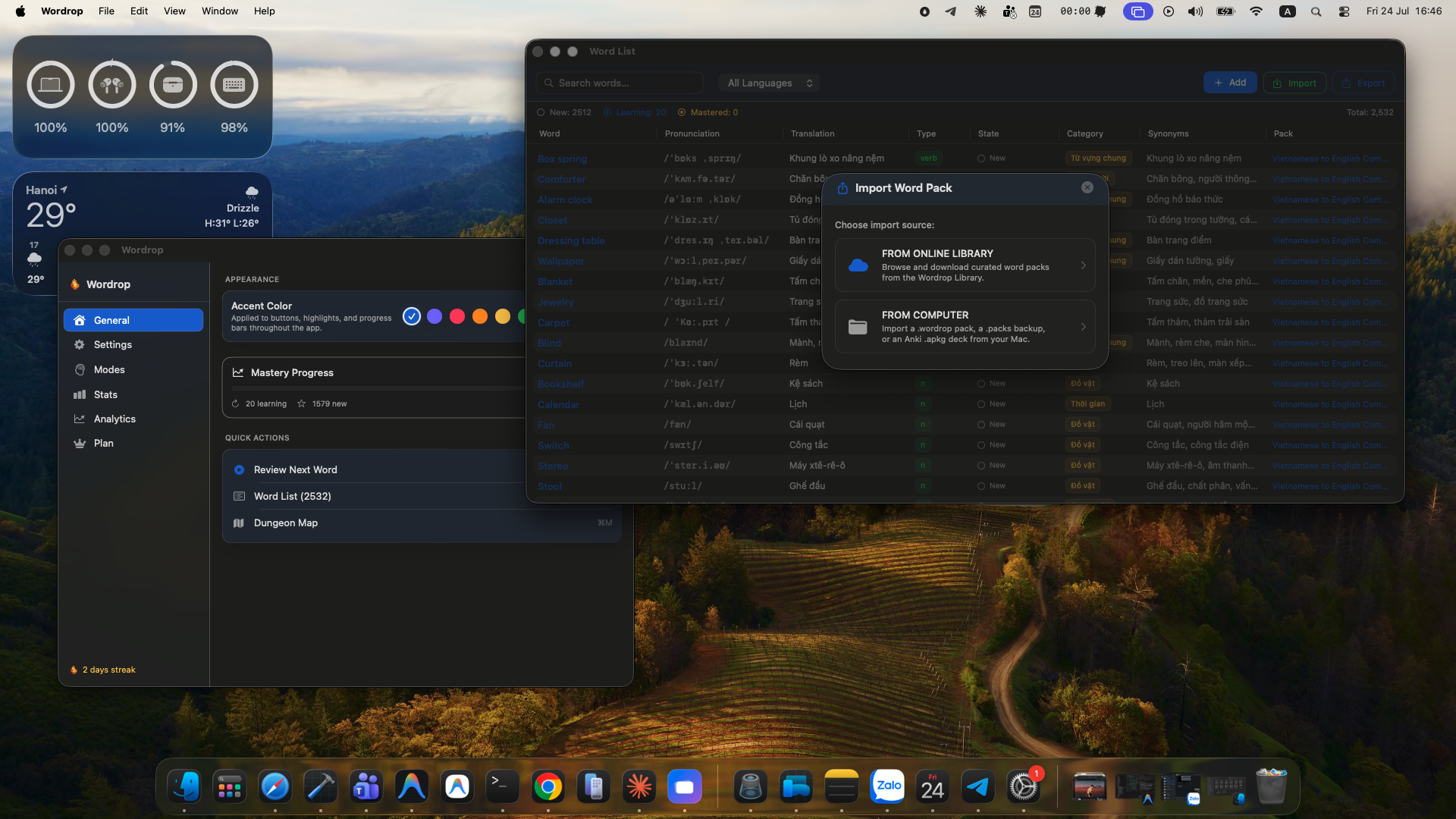
- FROM ONLINE LIBRARY — browse more curated packs
- FROM COMPUTER — import
.wordrop,.packs, or Anki.apkg
Click Export to back up your full word list as a CSV.
The questions people actually ask
The quiz appears at a bad moment. Can I dismiss it?
Yes — click [ × ] in the top-right corner of the quiz card. The word won't be marked as reviewed and will reappear in your next session.
How do I pause quizzes during a deep work session?
Click the Wordrop icon in your menu bar → Pause Quizzes... → choose 30 minutes, 1 hour, or the rest of the day.
What if I change my word pack? Will I lose progress?
No. Go to Settings → Word Pack, select the new pack. Your existing progress is preserved. Note: the change takes effect from tomorrow.
How many new words per day is right?
10 is the default and works well for most people. At that rate, you'll see meaningful vocabulary growth in 6–8 weeks. If your Again rate in Analytics is consistently high, drop to 5. If everything feels too easy, push to 15–20.
What's the difference between Again / Hard / Good / Easy?
Your self-rating after each quiz determines when that word appears again. Again = show very soon. Easy = long wait. The SM-2 algorithm uses these ratings to minimize total review time while maximizing retention. Honest ratings = better results.
Does Wordrop work offline?
Yes. After the initial pack download, no internet required to study. Your word lists and review history stay on your Mac — the only things we ever receive are what you choose to send us (see below).
Where do I send feedback or report a bug?
Plan tab → Send Feedback, or report a specific word straight from its card. Both go directly to the dev team — nothing else leaves your Mac.
The mindset shift that makes it work
Most people try Wordrop for a few days, feel like "nothing is happening," and stop.
Here's why: they're waiting to feel like they're learning.
They want to open an app, sit down, focus, and emerge 30 minutes later feeling accomplished. Wordrop doesn't give you that. It gives you something better.
Three weeks in, you're reading an English article and you understand a word you couldn't have defined last month. There was no lightbulb moment. No study session. You just... know it now.
That's the Ebbinghaus forgetting curve working in reverse. Instead of words fading out, Wordrop keeps topping them up — just before you'd forget them — until they become permanent.
The system only works if you let it run. Don't over-configure it. Don't block too many apps. Don't chase the feeling of studying.
Just keep working. Let Wordrop fill the gaps.