

You downloaded the .dmg. You dragged it to Applications. You double-clicked.
Then macOS hit you with this:
> "Wordrop" Not Opened — Apple could not verify "Wordrop" is free of malware.
You stared at the screen. Two buttons: Move to Trash or Done.
You clicked Done. Nothing happened.
You didn't break anything. macOS just doesn't know Wordrop yet — because Wordrop is a beta, not an App Store release. This is completely normal, and the fix takes less than 3 minutes.
Here's exactly what to do.
Why macOS Is Blocking Wordrop (And Why It's Fine)
macOS has a gatekeeper. Its job: block every app that Apple hasn't personally reviewed.
Beta app = not on the App Store yet = blocked by default.
This doesn't mean Wordrop is dangerous. It means you're one of the first people to use it before it goes public. The app is the same app — Apple just hasn't stamped it yet.
The fix? A few clicks in System Settings. No terminal commands. No tech skills needed.
Before You Start, Grab These:
- ✅ Mac running macOS 12 Monterey or later
- ✅ The
Wordrop.dmgfile from your invite email - ✅ Your Mac password (or Touch ID)
- ✅ 3 minutes
Step 1 — Install Wordrop from the .dmg
Open your Downloads folder. Find Wordrop.dmg and double-click it.
A dark window appears with two icons side by side:
- Applications ← the folder where Mac apps live
- Wordrop ← the app you're installing
Drag the Wordrop icon onto the Applications icon. Hold it there until the copy starts. Wait about 5–10 seconds.
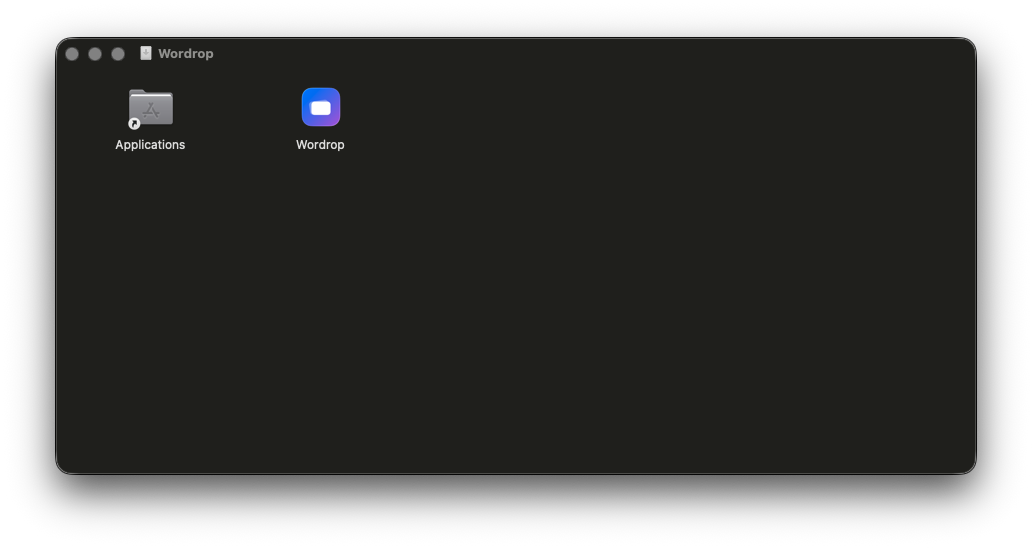
Done. Wordrop is now in your Applications folder. But macOS won't let you open it yet.
Step 2 — Open Wordrop Once So macOS Notices It
Go to Finder → Applications. Find Wordrop. Double-click it.
macOS will immediately block it and show this warning:
> "Wordrop" Not Opened — Apple could not verify "Wordrop" is free of malware that may harm your Mac or compromise your privacy.
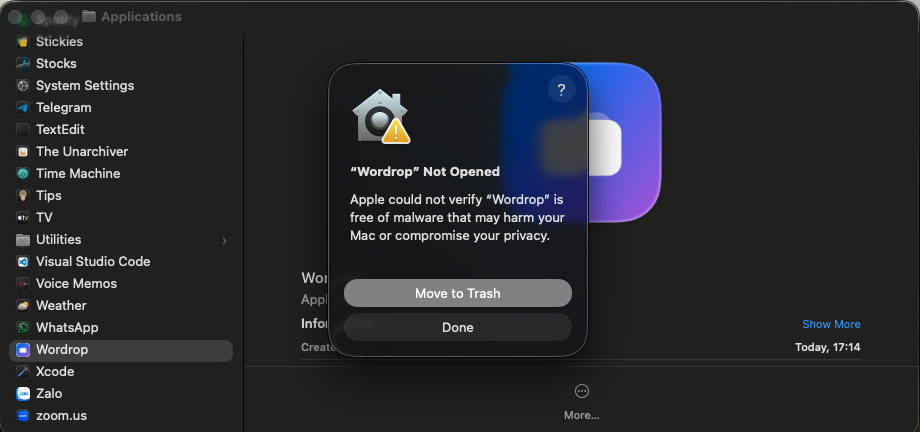
> ⚠️ Critical: Click Done — not "Move to Trash." If you click Move to Trash, the app gets deleted and you'll have to start over.
Click Done and move on.
This step looks like it failed — but it didn't. You just told macOS "this app exists and I tried to open it." That's exactly what the next step needs.
Step 3 — Go to System Settings and Click "Open Anyway"
This is the step that actually unlocks Wordrop.
Open System Settings. You can find it in:
⌘ Space and type "System Settings"Click Privacy & Security in the left sidebar.
Scroll down until you see a Security section. There it is:
> "Wordrop" was blocked to protect your Mac. — [Open Anyway]
Click Open Anyway.
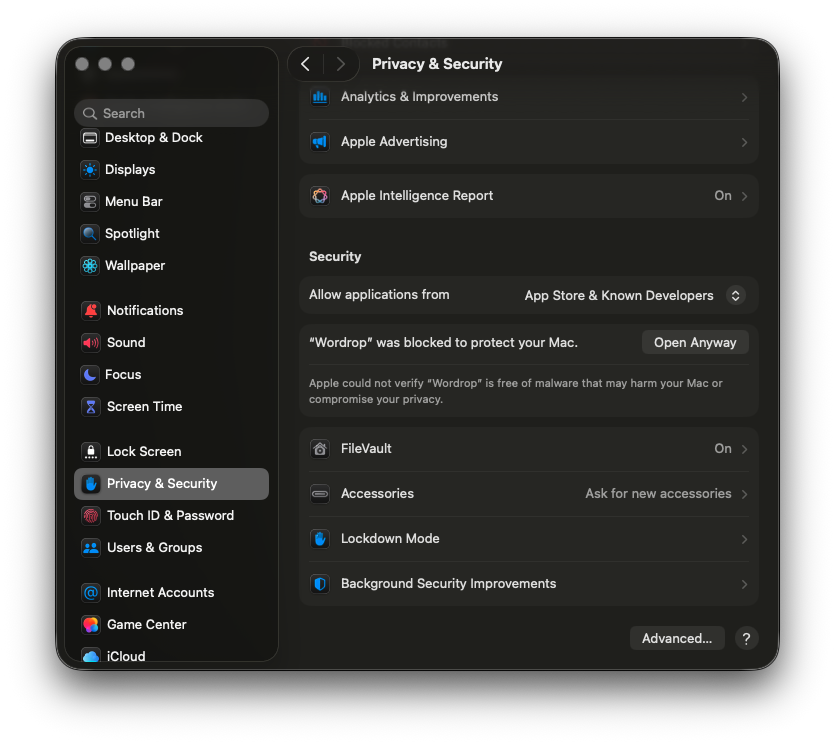
> 💡 Don't see the Open Anyway button? That means Step 2 didn't register. Go back to Applications, double-click Wordrop, click Done on the warning, then come back here.
Step 4 — Confirm Once More That You Trust Wordrop
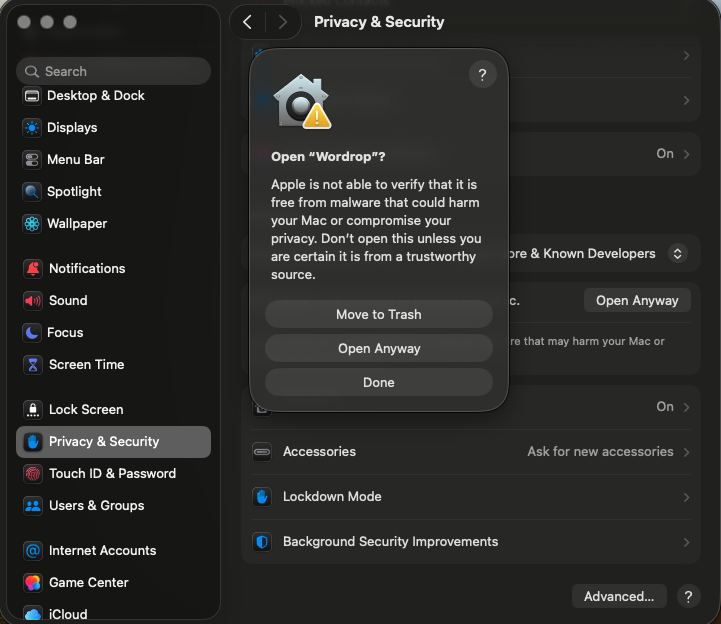
macOS gives you one final chance to back out. A dialog pops up:
> Open "Wordrop"? — Apple is not able to verify that it is free from malware. Don't open this unless you are certain it is from a trustworthy source.
Three buttons appear: Move to Trash, Open Anyway, Done.
Click Open Anyway.
You're in the home stretch.
Step 5 — Prove You're the Owner of This Mac
One last step: macOS asks you to verify with your admin credentials.
A Privacy & Security dialog appears with two options:
- Touch ID — press your fingerprint sensor
- Use Password... — type your Mac login password
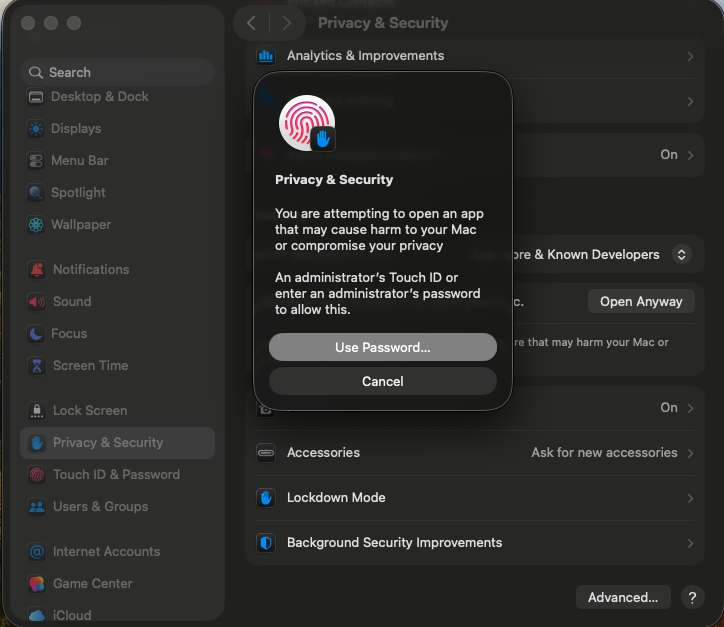
Authenticate. Wordrop opens.
That's it. You're in.
3 Things to Do Right Now (Don't Skip These)
You just got access to Wordrop before it goes public. Here's how to make the most of the next 30 days:
🔵 Try All the Learning Modes
Don't just use the default mode. Wordrop has Recall and Reverse Recall — each one trains your memory differently. Spend 5 minutes with each.🟢 Send Real Feedback — Even Small Things
Hit [ SEND FEEDBACK ] inside the PLAN tab. You don't need to write an essay. Even "this button is confusing" or "I want to see X" is valuable. The team reads every single message.🟡 Export Your Word List Now (Seriously, Do This)
Before your trial ends, hit [ EXPORT WORD LIST ] to save a CSV backup of everything you've learned. Your vocabulary data is yours — always.Stuck? Here's What to Do
"Open Anyway" isn't showing up in Privacy & Security
→ You skipped Step 2. Go back to Applications, double-click Wordrop, click Done on the warning, then return to Privacy & Security and scroll down.
Accidentally clicked "Move to Trash"
→ Open Finder → Trash. Right-click Wordrop → Put Back. Then go back to Step 2.
Cancelled the Touch ID / password prompt
→ Head back to System Settings → Privacy & Security → click Open Anyway again → complete Step 5.
Still blocked after doing everything
→ Make sure the app file is named exactly Wordrop.app (capital W). Quit System Settings, reopen it, and look for the Open Anyway button in the Security section.
Can't find the PLAN tab inside the app
→ Check that you're signed in with the email address from your beta invitation.
Want to Learn Everything Wordrop Can Do?
The setup is done. Now comes the good part.
👉 Wordrop User Manual & Complete Guide — everything from building your first word pack to tuning your daily review schedule.
You're one of the first people to use Wordrop.
Every word you learn. Every bug you catch. Every piece of feedback you send. It all feeds directly into the version that thousands of future users will experience.
So open it. Explore it. Break it if you can.
And if anything goes sideways — or if something surprises you in a good way — tap [ SEND FEEDBACK ] inside the app. We're listening.